Friday, January 17th, 2020 .

If you’re just getting started with Waitlist Me Pro or Platinum, you’ll want to go through these steps to set up your tables, sections, and layouts.

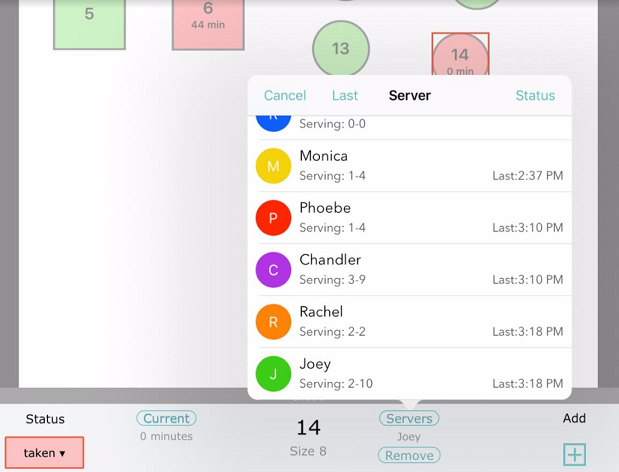
Set up tables – In the settings, navigate to Assignments. (In the app this will be under the gear icon > Manage Assignments.) Enter in the names of all of your tables, as well as their sizes. Each account defaults with assignments 1 – 30; delete any you do not need.

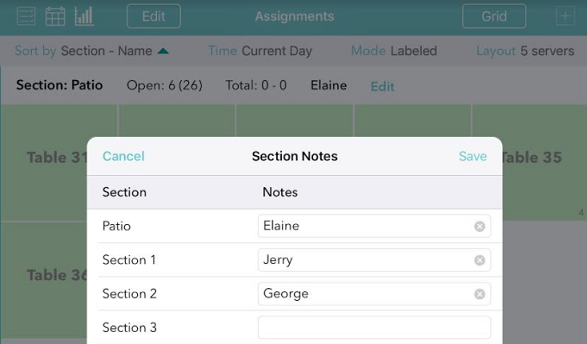
Name sections – When you’re done with the Assignments, go back to the previous screen and then choose Sections. Add the names of every section you will be using in any layout.

Name layouts – Enter the name of all the layouts you have. For example, Weekday Dinner & Weekend Dinner, or 4 Servers, 5 Servers & 6 Servers. If your sections never change, simply create one layout and name it something like Main or Dinner. 

Set up layouts – For each layout you’ve named, press Edit to set it up. Put a check in the box for each table that belongs to your first section. Then press the +Section in the middle of the row, and assign that section. If you want to use the color coding for your sections, choose the color at this time too. Continue this process until you’ve assigned all of the tables to the sections that belong in that layout. (You don’t have to use every table in every layout.) Then go back and repeat the process for other layouts. 

Once finished, Pro users can see more on how to utilize the grid view for table management here.

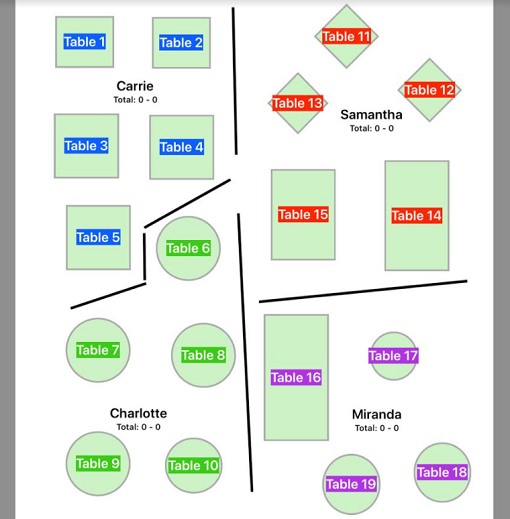
Place tables in rooms – With a Platinum subscription you’ll be able to create a spatial floor plan. To do this, go back to the main waitlist screen and then press the circle with the line in it on the upper left. From here, follow along with this video tutorial to set up your room(s) and place your tables:

Friday, July 27th, 2018 .

We could wax poetic about Waitlist Me’s bells and whistles for hours (and we have!). But, honestly, one of our favorite bonuses that comes with implementing a waitlist and reservation app is getting rid of bad waiting room symptoms that begin to infect customers.

Let’s take a look at some of the annoying waiting maladies and behaviors that Waitlist Me helps do away with (and appreciate just how much better the customer experience is with a waitlist app). Here are 5 classic moves:

The toe-tapper

Who needs music wafting from a speaker when you could keep time to the beat of the toe-tapper’s sneaker on your tile floor? We joke, of course. We know you’re turning up the dial and pricing out carpet in order to drown this sucker out. Their tap-tap-tap won’t make tables turn over any faster, but it certainly can drive your host crazy (along with anyone else who’s waiting). The rhythmic nature of the toe tapping makes it more likely to spread to a variety of fidgeting activities around the room, creating a rather tense environment.

The eagle-eye

We’re certain some eagle-eyes honed their behavior early on as hall monitors. A training ground of tardy students prepared them well for their next mission: us. Now, they’ve set their sights on guests lingering too long over dessert and front-of-house staff dilly-dallying behind the hostess stand. Ever feel like you’re being…watched? We know exactly who to pin that on.

The disappearing-act

Some people have the gift of invisibility. They can disappear into a crowd, blend in seamlessly, fade into the background or jump right into the action like they were born there. This disappearing-act pulls a fast one, all right—right out your door without so much as a word of warning. Will you see them again? Sure, about 20 minutes after you call their name (and give their spot to the next person in line).

The slump-and-sigh

The burdens of the world have to rest on somebody’s, shoulders. Why not the slump-and-sigh? After all, that’s what it looks like once you give them their ETA. They take their seat with a sigh that bespeaks inner turmoil greater than 10 minutes ‘til “the doctor can see you now.” And if they have to stand? This one morphs into the hunch-and-groan. Sigh.

The watch-watcher

Need to know the time? There’s always someone in your waiting room you can ask, although we’re not entirely sure you’d want to. Whether they’re old-school with a wrist watch, analog with a wall clock, or high-tech with the latest iPhone, the watch-watcher tracks their own countdown, thankyouverymuch. And if your wait-time guesstimate is off by so much as a minute, well, you can expect to hear about it. This another of the more infectious behaviors. If you have a diligent watch-watcher in the group, you’ll definitely see an uptick in the unconscious time checking behaviors from others in the room.

The solution

You can’t always get rid of waiting, but Waitlist Me helps you make the wait experience better by giving guests more visibility into the wait process and the flexibility to leave the waiting room and be notified with a text when you are ready for them.

Let the toe-tapper and eagle-eye work off some of their nervous energy by walking around outside while they wait. Help the disappearing-act know the right time to be back with a well-timed text message. Take some of the worries of endless or unpredictable waits off the slump-and-sighs shoulders. And show the watch-watcher you care by using real time wait tracking to give better estimates and deliver on the promised wait times.

Wednesday, May 22nd, 2019 .

With legalization on the legislative docket across the company, cannabis businesses are the retail industry’s rising stars. Dispensary success stories dot the landscape from the forests of Maine to the beaches of California. In fact, Business Insider names marijuana-related businesses as the fastest growing job sector in the United States.

What does that mean for you? One word: competition. The key to coming out on top? Two words: customer service.

Adding a waitlist and appointment app like Waitlist Me to your arsenal of business tools is an easy way to improve customer experience and loyalty and to increase your referral clientele. Plus, you can get started today for free!

Read on for five ways Waitlist Me can help you run a better marijuana business.

Let customers browse while they wait

A store loaded with interesting edibles feels like a grown-up candy store! Indulge your customers’ desires to take it all in without forcing them to give up their spot in line.

With Waitlist Me, guests can add their names to a digital queue. Then, they can delve into your merchandise, exploring their options and coming up with questions for your staffers. When one of your sales associates is free to assist them, customers will get a text on their smartphone letting them know their turn has arrived. Waiting has never been so simple!    

Welcome new customers to your store

A dispensary isn’t like other stores offering consumable goods. There are all sorts of variables new customers need to be educated about. Who better to guide them than your expert staff?

Waitlist Me frees up your staff so they can worry about one customer at a time. The app keeps track of your line—and lets queuers know their ETA—so that your employees don’t have to. This ensures that each person who steps into your store feels special and can ask every question they have about your products, no matter how small.

Bonus: Eliminating the need for staffers to juggle all the customers in your store will cut down on stress and improve sales results thanks to personalized, one-on-one attention.

Eliminate the wait for walk-ins

For regulars who know what they want and are on a tight schedule, Waitlist Me is what they’re waiting for.

Our app offers a web widget that businesses can easily place on their website. The web widget lets customers jump in line from wherever they are, like their office cubicle or a bar a few blocks over. That means less waiting around in your store for a clerk and more time enjoying life.

Introduce new treats

As the cannabis industry continues to grow, new products continue to pop up every day. Hosting in-store parties and tastings for these fresh goodies let your local community know what’s new. Waitlist Me lets you manage these crowded events with ease.

With Waitlist Me’s kiosk mode, you can let guests check themselves in as soon as they enter your store. Then, they can browse and mingle until you’re ready to show off your new wares. Our public waitlist feature, which customers can access on their phones and on in-store monitors, keeps them updated on their place in line.

Match shoppers with expert staffers

Have customers looking to ease medical complaints? How about newbies not sure where they should start? While some can help themselves, others need more guidance. Waitlist Me is here to help you help them.

Waitlist Me allows you to assign customers to certain employees. If you have associates with expertise in different areas, you can make sure that they help the customers who have questions they can answer best.

Wednesday, March 13th, 2019 .

Make your table management more efficient by viewing the waitlist on the same screen as table assignments. Split screen mode, currently available for iPads, will allow you to handle the waitlist while simultaneously managing table turnover.

Press the circle icon on the top left of the waitlist to go to the table management or assignments view.

Press Open in the footer bar to show the waitlist in the bottom half of the screen.

The waitlist, as well as today’s reservations, will now be visible. Drag the bar up or down to adjust the height of the waitlist to fit your needs.

From this view you can still add parties to the list, notify guests when you are ready for them, and check parties off the list. All of the waitlist view features are available without leaving the table management view.

Waitlist Me makes table management simple and effective. Our unique approach to section and resource management provides an intuitive tool that restaurant staff can pick up in a few minutes and enjoy using.  If you haven’t set up your sections yet, you can see how to do that here.

Check out more ways to get the most out of Waitlist Me by visiting our Knowledge Base.

Thursday, September 13th, 2018 .

The Public Waitlist page, which allows customers to see where they are in line while they wait, is also a great branding touchpoint.  When you add a customer to the list a link to the public waitlist is included in the confirmation text they receive and allows them to easily see where they are in line from their phone browser.  Waiting is less painful when customers have visibility into the wait process and the flexibility to leave the waiting area without worrying about losing their place in line. For your business, it helps cut down on walkaways

as well as repeated questions regarding how long until it’s their turn.

An important set of benefits that is often overlooked, however, includes the opportunities to provide more customized messaging on the public waitlist page at different stages in the wait: while they are waiting, when it is their turn, and after they are served.  Pro users can further customize these touchpoints.

Waiting – While customers are waiting and checking their place in line from the public waitlist, customizing the bottom part of the page is a great way to give them something to do while they wait. You can highlight specials, encourage people to join a loyalty program, and more.

Ready – When you notify customers that you are ready for them, the screen changes to highlight it is their turn with a new message and image along with options for them to communicate whether they are on their way or need to cancel. If you have any special instructions for when they arrive, this is a good place to include those as a reminder to customers.

Served – After a customer has been served, they don’t need to check their wait any longer, but the public page provides a final opportunity to say thank you.

There is a simple message and image by default, and with a Pro subscription, you can make it more personal and customized to your brand.  You can add a picture of your team, show a thank you message from your owner, invite people to join your loyalty program, suggest leaving a review, or other things you might want to add as part of your thank you.