Thursday, December 3rd, 2020 .

Waitlist Me makes it simple to track table availability and server assignments. There are a couple options that can be customized to your business needs and workflows. 

If you manage your tables by section, the first thing you’d want to do is visit this page to learn more about setting up your sections and layouts. If your business isn’t a restaurant, you can also use these same features to group your staff, rooms, or other resources visually in the Grid view.

Our Pro level service provides a very simple way to know what server is assigned to what section by using the Assignment Notes feature. Simply tap on the “Notes” link to view a list of sections and text form fields where you can enter server names or other notes for each section. It is easy to see high level information about each section and make changes all at once.

With our Platinum level service, you can also set up an additional floorplan view, and be able to position these same notes where you’d like in the floorplan view.

Also with Platinum you also have the option to assign servers individually to tables and track the activity by server rather than section. This is especially useful if you don’t use sections and use a system of assigning tables based on server turns or server activity. Or if you have servers assigned to sections, but need to have some floaters to help out where needed or other cross section activity, you can combine the section notes with individual server assignments to keep track of everything.

To set up individual servers, tap on the gear icon in the Waitlist Me app to go to the Settings and then go to Manage Assignments > Servers. Here you can enter the names of your servers. Select Status on the upper right of this menu if you want to add colors for the servers. Using different colors can make it easier to see where your different servers are assigned. Or maybe you want all your patio servers coded as green to make it easier to distinguish them from the indoor servers. 

After a table has been seated, select the table to access the footer bar. Here you will see a Server button, which brings up a menu of active servers. Choose a name to assign that server. You can sort by alphabetical order, the number of tables or seats each has had, or the amount of time since the last table was sat for each employee. 

Also, in the upper right of this server window is a Status option. The Server Status area lets you mark the servers who aren’t working today as inactive, and to change status colors if needed. 

If you haven’t yet named your tables, you can do that in the settings under Assignments. For the Pro features, you can find helpful information on navigating the grid view here. For the Platinum features, the video on this page will show you how to place your tables in your floorplan. 

Friday, February 28th, 2014 .

We are always looking for ways to make people’s wait experience better, and we have added a new way for restaurants to engage and communicate with guests in a non-obtrusive way while they are waiting.

There is now a new NoshList Premium feature for restaurants and other places using NoshList to customize their public waitlist page on WaitList with any information they’d like their customers to see. Some ideas include daily specials, reward program information, a social media feed or video, a link to leave a review on Yelp, among others.

Here is an example of how a rewards program could be highlighted below the waitlist on the page visitors can check from their phones:

NoshList public page copy

The way NoshList normally works is when a visitor has left their phone number and is added to the waitlist on NoshList, they automatically receive a text message confirming they have been added to the list and giving them a link to the public waitlist so they can check their place in line. The new feature allows guests to see more information below this waitlist, giving restaurants a great way to improve the guest experience even more and give helpful information to guests while they are waiting, right on their phone. The public waitlist can also be displayed on an internet browser in the restaurant or can also be viewed by customers from home. This public waitlist page is free for all NoshList accounts, and NoshList Premium users get access to this new customization feature as well as the option to let customers add themselves to the waitlist from their phone.

To add information to the public waitlist page, login to NoshList on the web and go to the Settings in the Account area. There is a “Customize Page” link that goes to a page where you can add text or HTML and preview how it will look on the page. Adding HTML gives you the flexibility to style the area with any fonts, colors, links, and images that you’d like to appear on the page. Otherwise you can just add text for some simple messages. There are also various online HTML editors as well as HTML views in most popular online blog services (like Tumblr, Blogspot, WordPress, etc.) that can help with formatting text into HTML

3-1-2014 7-25-28 PM


Want to customize the page even more or include the NoshList waitlist on your site? Let us know at support@noshlist.com and we can help you with this as well.

Wednesday, December 10th, 2014 .

santa noshlist

Memories of sitting on Santa’s lap can evoke strong feelings of nostalgia for many of us, and continuing the tradition of capturing these magical moments can be a must-do for parents and grandparents of younger children.  The problem is that the holiday season is already a very busy time of year, and getting a turn on Santa’s lap usually requires some waiting. In worst case scenarios, it can even take several hours. Santa’s Playground and Santa’s Castle in Calgary have found a way to give back some of this precious time to families this holiday season by using NoshList for their waitlist.

Believe Imaging, an event photography company founded by Shelagh Anderson, photographs children with Santa at two of the busiest malls in Calgary, Alberta, Canada. At each location, employees are tasked with the responsibility of making sure every child who visits gets a turn to tell Santa what they would like for Christmas.

On average, the two centers combined receive upwards of 7,000 visits per week during the holiday season from November 23 through December 24.  To better handle the large number of visitors, Anderson was able to streamline the registration process and improve the customer experience by rolling out NoshList at both locations.

Prior to the launch of NoshList, employees were using pen and paper to take down names and numbers.

“The problem with pen and paper was the constant barrage of customers coming to ask if it was their turn because there was no visual display letting the customers know where they were in line,” Anderson said.

At first Anderson researched paging system, but the high initial and ongoing costs led her to seek an alternative solution.

“Originally in 2013 I sought out pagers, but after speaking to someone who had a system in excess of $3,000 I thought to myself that it didn’t make sense to invest in that archaic technology and there had to be a better way,” she said. “So I started looking on the Internet and came across NoshList in March 2014. This type of concept has been in my head for a number of years, so finding NoshList has definitely helped us realize some of the vision that I’ve had over the years.”

With the busiest days bringing over 700 kids to see Santa, children and their families can wait up to an hour for their turn.  While there is a play room in each location to ease the boredom, having a waitlist system like NoshList gives parents and families the ability to do other things while waiting for their turn.

“In terms of improving communications with our customers and allowing them the opportunity to roam the shopping center rather than stand in line, NoshList has been extremely well received by both mall administration and customers,” Anderson said. “Mothers are thrilled because they can register and know their kids are going to see Santa, while they have the freedom to go get a drink, use the restroom, continue shopping, or do other things.”

Registration is handled by three employees who are each armed with an iPad to start the waitlist process.Customers can see their places in line by clicking on a link to the public waitlist view and get a better estimate of how much longer it will be before their turn. The company also encourages their customer service desks to also log on to www.waitlist.me/n/believe_mm to accurately convey to customers who phone in asking about the wait times.

But the best part is that employees can also take down the children’s names and ages so Santa is prepared even before the child makes it to his lap.

“The elf standing next to Santa can relay the names of the next kids to him, and it adds that extra level of magic to the experience,” Anderson said. “If you’re a child and you round the corner and Santa calls you by name, that’s pretty awesome.”

believe imaging

Monday, June 4th, 2018 .

Aromatherapy facials, deep tissue massages, seaweed body wraps—all things R&R are on our radar this summer.

While your guests sip champagne and slip into jacuzzi tubs, we’re setting aside our cucumber slices. Why? Because dare-to-bare beach season is here! We’re revving up our waitlist and management app to help you handle the hustle and bustle of weekend trips, girls’ getaways, and long afternoons of head-to-toe pampering.

Here’s how Waitlist Me can help spas and salons crank up their customer service.

Balance walk-ins and reservations

There’s no need to fuss over the different types of clients you serve! Waitlist Me lets you handle them all with ease—and see where you can squeeze in a walk-in among a slew of reservations.

Keep tabs on multiple locations

Waitlist Me ensures that owners and managers of multiple locations don’t have to twiddle their thumbs wondering how business is going or tie up the phone lines. Our Multi-Location Management lets them check in 24/7/365 from wherever they are.

Let guests check themselves in

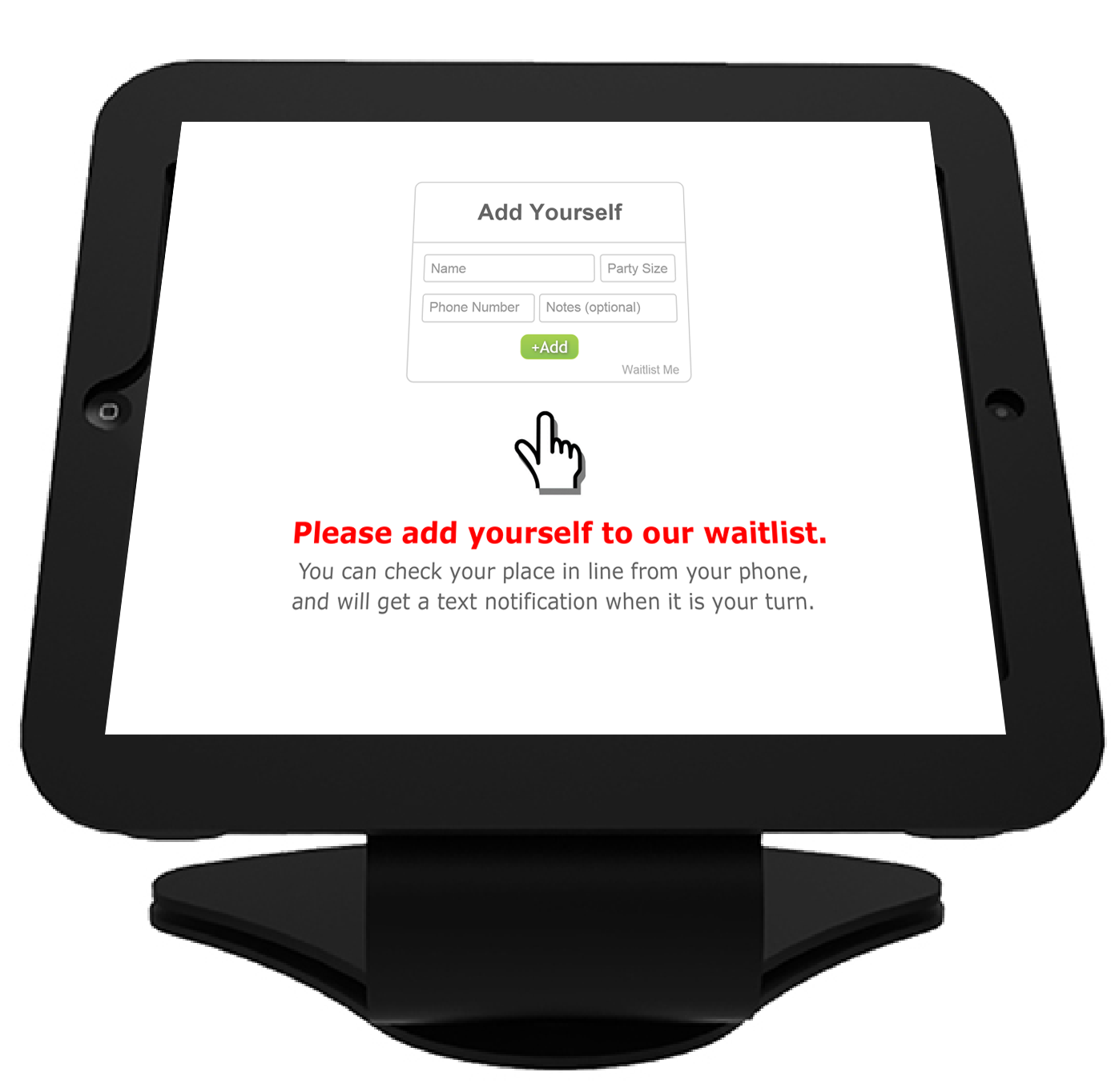
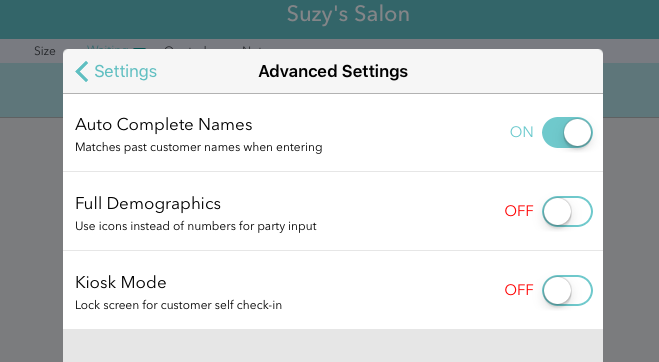
A line at your check-in desk can turn customers off. With Waitlist Me, though, you can quickly set up a Self Check-In Kiosk where guests can DIY instead of stand in line (and get to the R&R part of the visit way faster).

Offer accurate wait times

No more hazy estimates about how long it’ll take to finish up those French tips. Tracking actual waits next to estimates helps your staff learn to quote waits more accurately and know when things are running behind.

Ensure that every front desk attendant is in the loop

Forget about sharing a single reservation book with three hosts! Multi-Device Sync lets you put Waitlist Me on as many devices as you want, letting you ramp up staffing (and dial it down) whenever you need to.

Check availability at-a-glance

Waitlist Me is designed to be intuitive to use. That means your front-of-house staff can spend more time on customer service and less time scrolling through a zillion complicated screens.

Enable guests to wander while they wait

When a customer reaches the front of the line (or their masseuse becomes available), Waitlist Me lets you text them for free to let them know. And if they’re a few minutes away? No sweat. They can text back (and never have to worry about losing their spot).

Allow customers to make appointments on the fly

A spontaneous pedi? Why not! Our Add Yourself Web Widget is a second-tier feature that lets guests add themselves to your waitlist from wherever they are, no phone call necessary.

Offer a public waitlist

With Waitlist Me, there’s no need for toe-tapping impatience. Pop the public waitlist feature on a monitor or TV screen in your lobby, and guests can see for themselves where they are in line.

Track your ROI on-demand

Our app’s Pro-level analytics run in the background 24/7, making it easy to spot trends in the popularity of your services or employees.